 AitJaz
Voice typing in Word: how to dictate text into a document on Windows
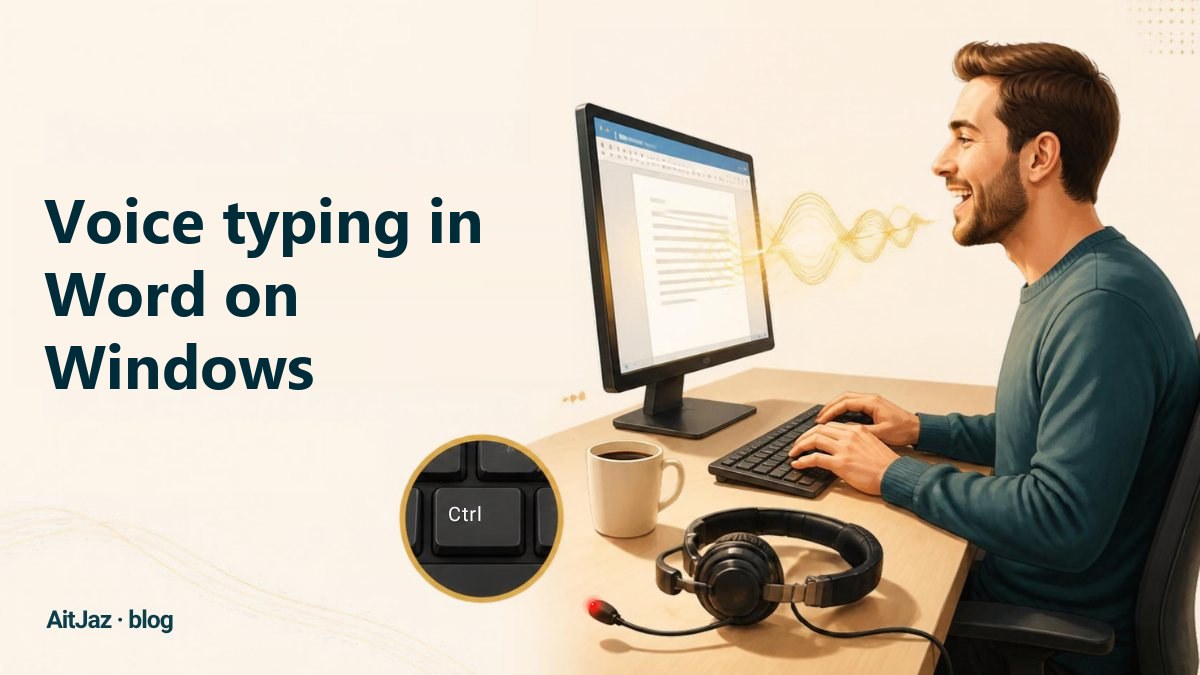
To type with your voice in Word, click where the text should go in the document, hold the right Ctrl key, speak and let go. The sentence appears in the document with capital letters, commas and periods. You need AitJaz, a voice typing program for Windows 10 and 11. It recognizes speech on your computer without an internet connection or, if you prefer, online with your own API key.
What do you need for voice typing in Word?
- A PC or laptop with Windows 10 or 11 (64-bit). No graphics card needed.
- A microphone. The one built into your laptop or webcam works; on a desktop PC, any ordinary headset does.
- AitJaz. The first 7 days are free, with every feature, no account and no card.
There is nothing to set up in Word itself. AitJaz puts the text wherever the cursor is blinking.
How do I dictate in Word? Step by step
- Install AitJaz. Install it from the Microsoft Store or download the installer from the site. On first launch, AitJaz checks your computer and picks a speech model that runs fast enough on it.
- Check the speech language. Click the AitJaz icon next to the clock, open Settings → Recognition and choose your language under Speech language. The speech model for English downloads once, the first time you use it. That needs an internet connection and, depending on its speed, a few minutes.
- Open the document and place the cursor. Click where the text should appear.
- Hold the right Ctrl key and speak. A small indicator at the bottom of the screen shows that AitJaz is listening.
- Let go. The sentence appears in the document with capital letters, commas and periods. Whatever was on your clipboard before, AitJaz puts back.
Dictate the next sentence the same way. AitJaz reads the text before the cursor: if you are continuing a sentence, the first word starts lowercase; if you start a new one, it gets a capital. The space before it is added for you.
💡 You don't need to say “comma” or “period”. Speak in full sentences at a normal pace.
Long documents: hold the key or press it once?
By default you hold the key while you talk. For long paragraphs that gets tiring, so under Settings → Dictation key there is a “Press to start, press again to stop” mode: press once, say the paragraph, press again, and the text goes into Word.
Change lets you pick a different key. If you stumble mid-sentence, press Esc while recording: the recording is dropped and nothing goes into the document.
For a long report, dictate one paragraph at a time. Think it through first, then say it in one go. The text comes out better organized, and you spend less time fixing it.
Does voice typing work in Outlook too?
Yes, the same way. Open a new email or a reply, click into the message body, hold the right Ctrl key and speak. You can fill in the subject line like this too. The same key works in Excel, Teams, your browser and any other program where you can type.
How do I teach AitJaz names and technical terms?
For the names of clients, products and places, and for the terms of your trade, there is a vocabulary. Find it under Settings → Recognition, in the Vocabulary field. Type the words separated by commas, spelled exactly as they should appear in your text, for example:
Whitfield & Partners, statute of limitations, subcontractor, Dr. Okonkwo
AitJaz takes that spelling into account when it recognizes your speech. Still, read names, numbers and dates before you send a document; that goes for any dictation.
What if the text doesn't appear in Word?
When Word runs as administrator, Windows doesn't let other programs paste into its window. AitJaz then puts the text on the clipboard and shows a hint. Press Ctrl+V in the document and the text is there. To get automatic pasting back, start Word the usual way, without “Run as administrator”.
Can I turn a recording into a Word document?
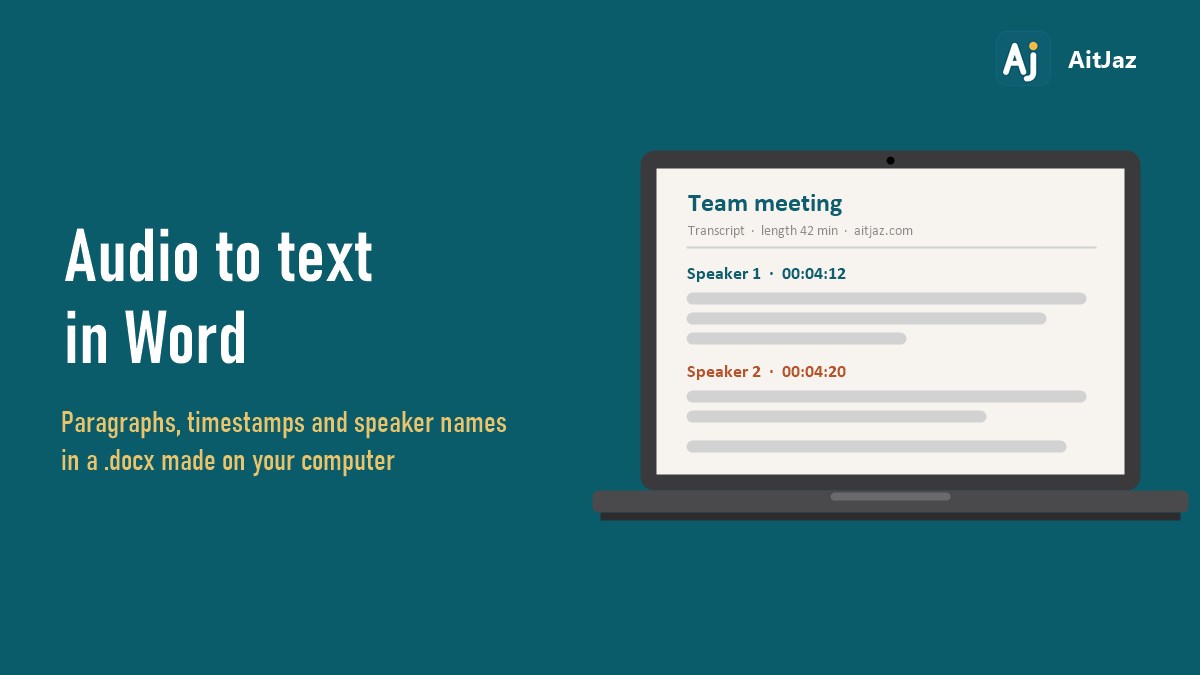
Yes, but that is a different job. Voice typing writes down what you are saying right now. For a recording you already have (a meeting, an interview, a lecture, a voice message or a video), AitJaz has the Audio & video to text section. Pick the file, choose Word (.docx) under Save as and click Transcribe. You can also save a PDF, plain text or subtitles (.srt, .vtt), add timestamps and separate speakers. The full walkthrough is in How to transcribe audio to text in Word.
Offline, or online with your own API key?
By default, AitJaz recognizes your speech on your computer. Your voice isn't sent anywhere, and dictation doesn't need the internet; you only need it to download the program and the speech model.
If you prefer, you can work online with your own API key. In the Cloud service section, enter a key from OpenAI, Google Gemini, Groq, OpenRouter, Together AI or Mistral. The sound then goes to that service, and you pay it at its own rates. This stays off until you turn it on yourself.
For dictation in other programs, see How to type with your voice on Windows. For more on recognition without the internet, see Offline dictation software for Windows.
Frequently asked questions
Can I dictate in Word without the internet?
Yes. AitJaz recognizes speech on your computer. You need the internet only to download the program and, once, the speech model for your language. If you prefer, you can work online with your own API key.
Do I have to say the punctuation?
No. AitJaz adds capital letters, commas and periods by itself. Full sentences give the most accurate punctuation.
Which languages can I dictate in?
18 languages, including English, Spanish, German, French, Italian, Portuguese and Polish. You choose the language in Settings; the language isn't detected automatically. Each language's model downloads once, the first time you choose it.
Is there a Mac version?
No. AitJaz runs on Windows 10 and 11.
How much does it cost?
The first 7 days are free, with no account and no card. After that it's $20 once for a lifetime license on 2 computers, with no subscription. There is a 14-day refund. Pricing.
One familiar tool instead of many
Every app does things its own way: a different button here, different settings there, and every time you have to remember how to turn it on and how to use it. AitJaz works one way everywhere: hold Right Ctrl, speak, let go, and the text appears where your cursor is. It's the same in messengers, email, documents, your browser and AI chats, so you only learn it once.