 AitJaz
How to transcribe audio to text in Word: a .docx with paragraphs, timestamps and speaker names
To transcribe audio to text in Word, run the recording through a speech recognition program that saves the result as a .docx file. In AitJaz, open Settings, go to Audio & video to text, choose the recording, pick Word (.docx) under Save as and click Transcribe. You get a Word document with a heading, paragraphs and, if you want them, timestamps and speaker names. By default the recording is processed on your computer without an internet connection; you can also send it to a cloud service with your own API key.
This guide is about a recording you already have: a meeting, an interview, a lecture, a voice message or a video. Below are the steps, what the finished document looks like, how to put real names in place of “Speaker 1”, and what to do with the text once it is open in Word. If you want to dictate new text straight into a document instead, see Voice typing in Word.
What you need
- A Windows 10 or 11 computer with AitJaz installed. The first 7 days include every feature, with no card and no account.
- The recording itself. Audio: mp3, m4a, aac, wav, ogg, opus (WhatsApp and Telegram voice messages), flac, wma, amr. Video: mp4, mov, mkv, webm, avi and more; AitJaz takes only the sound track. There is no limit on length.
- Word, to read the result. AitJaz writes the .docx file by itself, so Word isn't involved in the transcription; you open the finished file in Word to read and edit it.
How to transcribe audio to a Word document, step by step
- Install AitJaz. Download the program and run the installer.
- Open the section. Click the AitJaz icon next to the clock, choose Settings and open Audio & video to text, the first section in the list.
- Choose the recording. Leave File selected at the top, click Browse… and pick the audio or video file.
- Set the speech language. Choose the language spoken in the recording.
- Choose Word. Under Save as, click Word (.docx).
- Tick what you need. Open More settings. There you will find timestamps at the start of paragraphs, Split into paragraphs at pauses and Separate speakers. For a conversation, tick Separate speakers and leave Number of people on Auto, or set it from 2 to 6.
- Pick a folder, or don't. If Save to is empty, the document is saved in the same folder as the recording.
- Click Transcribe. Progress is shown in percent, with the time left. Cancel stops the job. You can close the settings window while it works, and dictation keeps working as usual.
- Open the document. When it's done, Open opens the .docx, and Show in folder shows where it is.
💡 The document gets the recording's name: interview.mp3 becomes interview.docx. If a file with that name already exists, AitJaz saves interview (2).docx next to it and leaves the old one alone.
What the Word document looks like
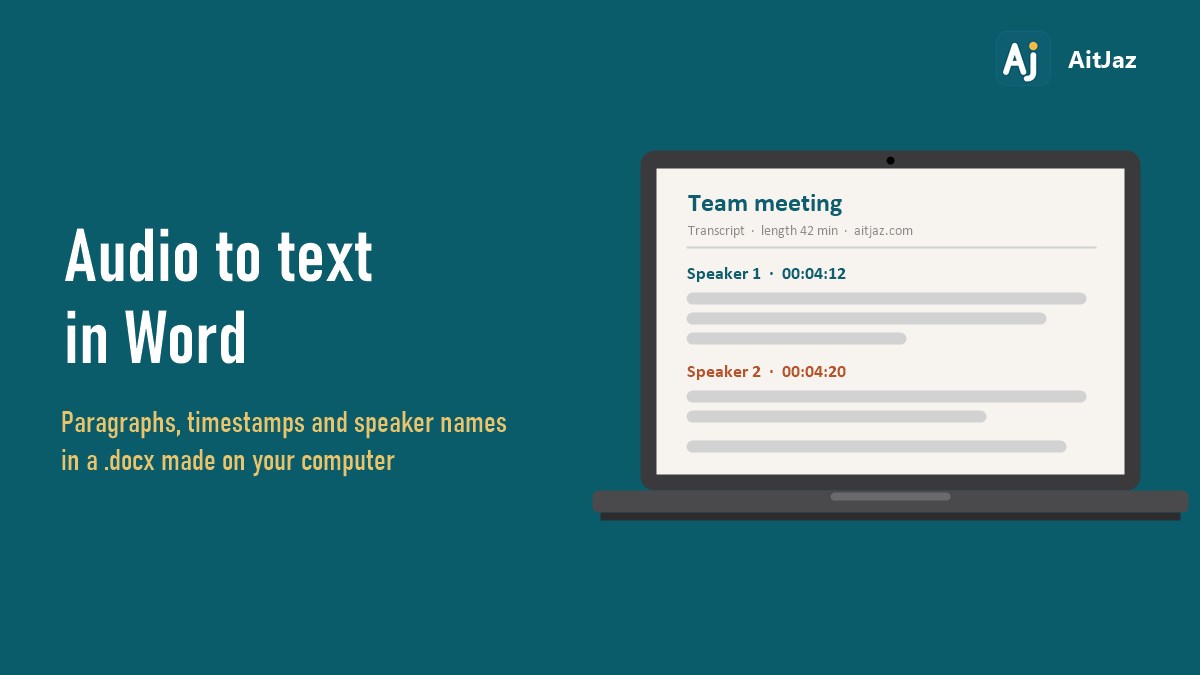
At the top is a heading with the recording's name. Under it, a grey line gives the date, the length of the recording and a link to aitjaz.com. Then the transcript follows in paragraphs, in Calibri 11 on an A4 page. With speaker separation on, every paragraph starts with the speaker's name in bold, each person in their own color, then the time, and the words on the next line. A new speaker always starts a new paragraph. A fragment looks roughly like this:
Speaker 1 · 00:04:12
Let's go through the budget
first and leave the hiring plan for the end.
Speaker 2 · 00:04:20
Fine. I've sent the updated
numbers this morning, they are in the shared folder.
The settings you tick change the document like this:
| Setting | What it adds to the Word document |
|---|---|
| Timestamps | The time from the start of the recording, in bold, at the beginning of each paragraph, for example 00:12:30 |
| Split into paragraphs at pauses | A new paragraph where the speaker paused, so the text doesn't come out as one long block |
| Separate speakers | “Speaker 1”, “Speaker 2” and so on before each paragraph, each name in its own color |
| None of them | The heading, the date line and the plain transcript |
If a recording can't be split by speaker, you get the plain text instead.
How to replace “Speaker 1” with real names
- When the transcript is ready, click Speaker names… in the same section.
- Type a name for each speaker. Timestamps help you work out who is who: open the recording at that moment and listen.
- Click Save to file. The names replace “Speaker 1”, “Speaker 2” throughout the document, and the colors stay.
AitJaz writes the file again under the same name. So add the names first, then close the document in Word if it is open, and only after that start editing the text.
What to do with the transcript in Word
The file is an ordinary Word document. A few things are worth doing with a fresh transcript:
- Before you send the text to anyone, check names, sums, dates and terms. The timestamp tells you where that moment is in the recording, so you can listen to it again.
- Ctrl+F finds a word or a phrase: who mentioned the deadline, where the price came up.
- If an unusual surname or product name came out wrong every time, Ctrl+H (Replace) corrects it throughout the document in one go.
- For minutes, save a copy first, then add your own headings, bold the decisions and delete small talk. The original file keeps the full transcript.
- You can send the .docx to colleagues, leave comments for them or save a copy as PDF. If you only need a PDF, AitJaz can save one directly: choose PDF (.pdf) under Save as.
Offline or in the cloud: where the recording is processed
By default, AitJaz recognizes the recording on your computer. No internet connection is needed and the file is not sent anywhere, which matters when a meeting is about contracts or money. The internet is needed only to download the program and, once, the speech model for languages other than Russian. The voice model for speaker separation comes with the program.
You can also work online with your own API key. In the Cloud service section, enter a key from OpenAI, Google Gemini, Groq, OpenRouter, Together AI or Mistral, and recordings will be recognized by that service. The sound then goes to the cloud, and you pay the service at its own rates. The key is stored encrypted. If the service doesn't answer, AitJaz recognizes the rest of the recording on your computer. The section always shows where the recording will be processed.
How long it takes
On our test laptop (Intel Core i5-4210U, 12 GB of RAM), one minute of Russian speech takes about 13 to 15 seconds, and speaker separation adds about 15 seconds for every 5 minutes of recording. We haven't measured other languages yet. The time depends on your processor and the language, so the program shows its own estimate while it works.
Tips for a cleaner transcript
- Choose the language actually spoken in the recording before you click Transcribe.
- If you know how many people spoke, set that number instead of Auto.
- Speaker separation works best when people take turns. Where they talk over each other, reread the labels.
- For future meetings, keep the microphone or laptop close to the people speaking.
For more on meetings and interviews with several voices, see Audio to text with speaker separation. If there is no file yet and the talk is playing in a browser, AitJaz can record the computer's sound and transcribe it: see How to transcribe a YouTube video to text. All transcription features are on the Audio & video to text page.
Frequently asked questions
Can I transcribe audio to Word without the internet?
Yes. By default, AitJaz recognizes the recording on your computer and writes the .docx file itself. The internet is needed only to download the program and, once, the speech model for languages other than Russian. If you prefer, you can turn on a cloud service with your own API key.
Do I need Word installed to get a .docx file?
No. AitJaz creates the Word file on its own. You need Word, or another program that opens .docx, only to read and edit the result.
Can I convert a video to a Word document?
Yes. Pick an mp4, mov, mkv, webm, avi or other video file. AitJaz takes the sound from it and saves the transcript as .docx.
Is there a limit on recording length?
Not for files: a five-minute voice message and a recording several hours long both work. A meeting or computer sound recorded by AitJaz itself can run up to 4 hours.
Which languages are supported?
18 languages, the same as dictation, including English, Spanish, German, French, Russian and Kazakh.
Does AitJaz write a summary of the recording?
No. You get the full word-for-word transcript with paragraphs, timestamps and speaker names. The summary or the minutes you write yourself, in Word.
Can I get PDF or plain text instead of Word?
Yes. Under Save as, choose PDF (.pdf), Text (.txt), or subtitles in .srt or .vtt.
How much does it cost?
The first 7 days are free with every feature. After that it's $20 once, with no subscription and no per-minute fees, for a license that covers 2 computers. There is a 14-day refund. Pricing.
One familiar tool instead of many
Every app does things its own way: a different button here, different settings there, and every time you have to remember how to turn it on and how to use it. AitJaz works one way everywhere: hold Right Ctrl, speak, let go, and the text appears where your cursor is. It's the same in messengers, email, documents, your browser and AI chats, so you only learn it once.