 AitJaz
How to transcribe a YouTube video, webinar or online lecture to text on Windows
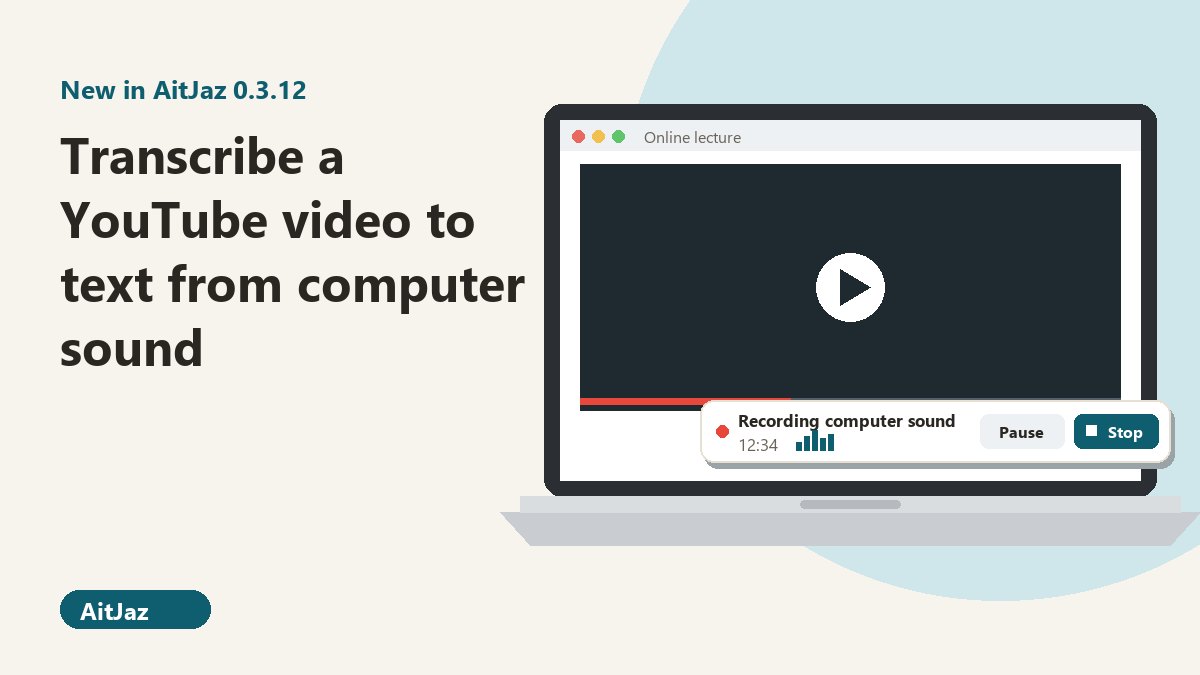
To transcribe a YouTube video on Windows, record the sound your computer is playing and run speech recognition on it. Starting with version 0.3.12, AitJaz does both: choose Computer sound as the source, click Start recording, play the video, and click Stop at the end. You get a Word file, plain text or .srt subtitles. The video itself is never downloaded, and recognition runs on your PC by default.
Until now AitJaz could only transcribe files on your disk, and a lecture on YouTube or a live webinar isn't a file. Version 0.3.12 lets it listen to the computer itself. It is out now, both in the Microsoft Store and as the installer on this site. If you don't see the option yet, open Settings, go to General and click Check for updates (if AitJaz has already found the update, the button says Update to version 0.3.12).
How recording computer sound works
AitJaz listens to whatever is coming out of your speakers or headphones at that moment. It doesn't need a link and doesn't download anything. It hears the same audio you hear, so it works with any player: YouTube in a browser, a webinar, a recorded stream, a lesson on a learning platform, a podcast on a website.
Your microphone is not part of this recording. Only the sound your computer plays is captured.
The trade-off is time. Recording lasts as long as the video plays, so a 50-minute lecture takes 50 minutes to record. Transcription starts the moment you click Stop.
Who finds this useful
- Students who would rather search and skim a lecture than scrub through the video looking for one slide.
- Anyone learning from webinars who wants the full text to highlight instead of handwritten notes.
- Journalists and researchers quoting a published interview or a talk, with timestamps to find the exact moment again.
- Creators who want .srt subtitles for their own stream or video.
Step by step
- Click the AitJaz icon next to the clock, open Settings and choose Audio & video to text on the left.
- Under Sound source, pick Computer sound (YouTube, webinar, any video).
- Set the speech language and choose a format under Save as. Turn on timestamps if you want them, and Separate speakers if the video is a conversation. Leaving the folder empty is fine.
- Open the video, go back to the beginning and pause it.
- Click ● Start recording in AitJaz, then press play.
- When the video ends, click Stop on the small recording panel.
- Use Open or Show in folder in the same section to get your text.
💡 Once your settings are in place, you can skip the window entirely: open the AitJaz menu next to the clock and choose Record computer sound…. Recording starts straight away with your last settings.
The recording panel
While AitJaz records, a small panel titled “Recording computer sound” sits in the bottom right corner. It shows the elapsed time and a level meter. If the meter doesn't move, no sound is reaching AitJaz; check this in the first few seconds rather than an hour in.
- Pause skips an ad or a break: nothing is recorded and the timer stops. Resume carries on in the same file.
- If the panel covers subtitles or a slide, drag it somewhere else with the mouse. AitJaz remembers where you put it.
- Besides Stop on the panel, you can use ■ Stop and transcribe in the settings window or Stop recording computer sound in the tray menu. Cancel in the window throws the recording away without transcribing it.
What you get
| Format | Contents | Good for |
|---|---|---|
| Word (.docx) | The transcript in paragraphs, with optional timestamps and speaker labels | Lecture notes, interview transcripts |
| Text (.txt) | The same text without formatting | Notes apps, searching, pasting elsewhere |
| Subtitles (.srt) | Timed lines | Video editing, uploading captions for your own video |
Files are named after the date and time of the recording, like “Recording 26.10.2026 14-05.docx”. With no folder selected, they go to Documents\AitJaz. For a conversation, you can replace “Speaker 1” and “Speaker 2” with real names afterwards using Speaker names….
The audio is deleted after transcription unless you tick Also save the sound (.m4a) next to the text. If transcription fails, the audio is kept regardless, so the recording isn't lost. How long transcription takes depends on your computer and the language; AitJaz shows the progress while it works.
Tips for a clean transcript
- Play the video at normal speed. 1x gives the best result; above 1.25x the error rate climbs.
- Keep the video's own volume on. If the player is muted there is nothing to record. Listening through headphones is fine.
- Close other sources of sound. Notifications, music in another tab and system sounds end up in the recording too.
- Don't switch between headphones and speakers mid-recording. The recording may stop (then only what was captured up to that point is transcribed), or the sound may stop reaching it. Keep an eye on the level meter.
- A single recording can run for up to 4 hours. After that it stops and is transcribed automatically. If you close AitJaz by accident, the audio is saved to the transcripts folder.
Can you transcribe other people's videos?
For your own use, yes: study notes, research, a personal archive. Publishing a transcript of someone else's video requires the author's permission. Also follow the rules of the site you are watching on: paid online courses often prohibit recording, and in that case you shouldn't record them.
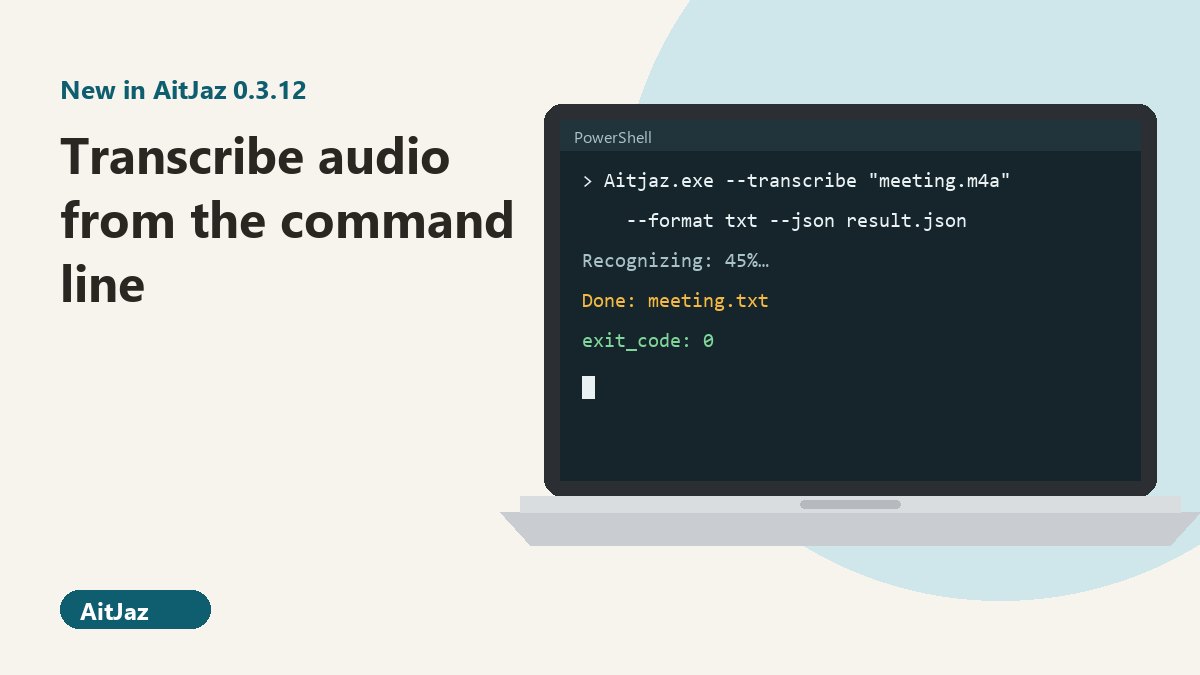
If you already have an audio or video file, you can transcribe it directly; see Audio and video to text. To process many files on a schedule, AitJaz can also transcribe from the command line.
FAQ
Do I need to paste a YouTube link?
No. AitJaz doesn't use links and doesn't download videos. It records the sound playing on your computer, so the video can be on any site or in any player.
Does it work offline?
Speech recognition runs on your computer and doesn't need the internet, unless you turned on your own cloud key for files. The video itself needs a connection, of course. For languages other than Russian, the speech model downloads once on first use, and speaker separation downloads a small 27 MB model the first time.
Can I speed up the video to save time?
It's better not to. At 1x the text comes out cleanest; above 1.25x there are noticeably more errors.
Will my own voice be recorded?
No. Only the sound coming out of your speakers or headphones is recorded. The microphone isn't used in this mode, so in an online call only the other participants end up in the text.
How long can a recording be?
Up to 4 hours per recording. At that point AitJaz stops and transcribes what it has.
Which languages are supported?
The same 18 languages as file transcription, including English, German, Spanish, French, Russian and Kazakh. Pick the speech language before you start recording.
How much does it cost?
The first 7 days are free with every feature, no card or account needed. After that it's a one-time purchase, no subscription, with a license for 2 computers. See pricing.
One familiar tool instead of many
Every app does things its own way: a different button here, different settings there, and every time you have to remember how to turn it on and how to use it. AitJaz works one way everywhere: hold Right Ctrl, speak, let go, and the text appears where your cursor is. It's the same in messengers, email, documents, your browser and AI chats, so you only learn it once.