 AitJaz
Quick commands: insert your signature, bank details or reply templates by voice
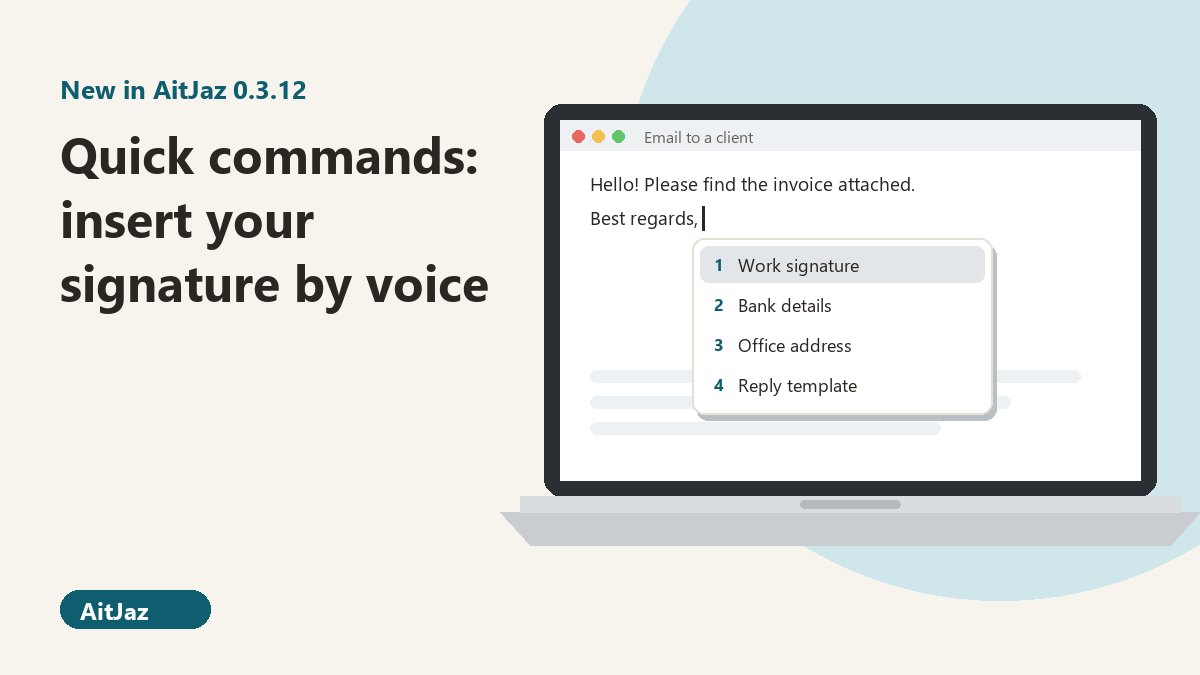
Quick commands in AitJaz insert a saved piece of text by name: a signature, bank details, an address, a contract number or a reply template. Press the dictation key twice, short and quick, and a list opens at your cursor; then hold the key, say the name or number, and release to insert the text. The feature was added in version 0.3.12; you can save up to 30 commands, and they stay on your computer.
Dictation is great for new sentences. But every job has text you type again and again, word for word: the sign-off on an email, payment details for an invoice, the office address, the same answer to the same customer question. Quick commands let you save these once and call them up by name. They are part of AitJaz 0.3.12, which is out now in the Microsoft Store and as the installer on this site. If you don't see Quick commands in Settings yet, go to General and click Check for updates (if AitJaz has already found the update, the button says Update to version 0.3.12).
What's worth saving as a quick command
Anything you paste more than once, on one line or several. A sales rep's set might look like this:
| Name (what you say) | Text that gets inserted |
|---|---|
| Signature | “Best regards”, name, job title, phone and email, each on its own line |
| Bank details | Company name, bank, account number and reference, line by line |
| Warehouse address | Street address, opening hours and directions |
| Shipping answer | A ready paragraph on delivery times and costs |
| Thanks for your order | A short note to send after payment |
An accountant might keep several clients' details, a lawyer contract numbers and standard clauses, a teacher a message template for parents. These are only examples; you write the texts yourself.
How to add a command
- Click the AitJaz icon next to the clock and choose Quick commands… The same page is also in Settings, on the left.
- In Name (what you will say), type a short name such as “Bank details”.
- In Text to insert, type or paste the text. Line breaks are kept.
- Click Save command.
- Click New command for the next one. To remove one, select it and click Delete.
💡 Pick names that sound different from each other and are easy to say. “Work signature” and “Personal signature” are easier to tell apart than “Signature 1” and “Signature 2”. The first nine commands in the list can also be called by number.
How to insert a command by voice
Put the text cursor where the text should go: an email, a document, a form field, a chat. Then press the dictation key twice, short and quick (Right Ctrl by default). The list of commands opens next to the cursor, with the first one highlighted in grey. If the app you are typing in doesn't report where its cursor is, the list opens next to the mouse pointer instead.
Now choose whichever way suits you:
| Method | What to do |
|---|---|
| Voice | Press and hold the key, say the name or number, and release it: AitJaz finds the matching command and inserts it. |
| Key only | Each short press moves the highlight one step down, wrapping back to the top after the last command. Press and hold for a moment without speaking to insert the highlighted one. |
| Mouse | Point at a command and click. The list doesn't take focus, so the text lands where your cursor was. |
Numbers work in several forms: “two”, “second” or “2”, for commands one to nine.
When AitJaz doesn't recognize the name
You don't have to say the name exactly. Capital letters and punctuation are ignored, and a slightly different word form still finds the right command. If nothing matches, “Couldn't find… Say it again” appears at the bottom of the list and nothing is inserted, so no stray words end up in your email.
Close the list with Esc or the “×” button. If you leave it alone, it closes by itself after 20 seconds.
If your dictation key is set to toggle
In Press to start, press again to stop mode the list opens the same way, with two quick presses. To pick a command by voice, press the key, say the name and press it again. The mouse works as usual.
How the text is inserted and where commands are kept
The command text goes in exactly as you saved it. AitJaz doesn't apply its usual dictation rules for capitals and punctuation here, so account numbers, email addresses and codes come through unchanged.
You can save up to 30 commands. They are stored on this computer only, and their text is never sent anywhere. If you turned on the cloud for dictation, only the spoken name goes there, like any other phrase. If you use AitJaz on a second computer, set up the commands there separately.
Quick commands work alongside regular voice typing: you dictate the new text and insert the repeated parts by name. For dictation basics, see how to type with your voice on Windows. And if you need the text of a lecture or webinar, read how to transcribe a YouTube video to text.
FAQ
Which apps do quick commands work in?
The same places AitJaz dictation works: email, Word, browsers, messengers and other apps where you can type. If an app doesn't report its cursor position, the list opens by the mouse pointer, and the text still goes into the field you were typing in.
How many commands can I save?
Up to 30.
Can a command contain several lines?
Yes. Line breaks in Text to insert are kept when the text is inserted.
Do I have to say the name exactly?
No. Capitals and punctuation don't matter, and a slightly different word form still matches. If AitJaz can't find a match, it asks you to say it again and inserts nothing.
Can I pick a command without speaking?
Yes. Short presses of the dictation key step through the list, and a press-and-hold inserts the highlighted command. You can also just click a command with the mouse.
Are my commands sent anywhere?
No. The command texts are stored on your computer only. If the cloud is on for dictation, only the audio of the name you say goes there, like any other phrase.
How much does it cost?
Quick commands are included in AitJaz. The first 7 days are free with every feature; after that it's a one-time purchase with a license for 2 computers. See pricing.
One familiar tool instead of many
Every app does things its own way: a different button here, different settings there, and every time you have to remember how to turn it on and how to use it. AitJaz works one way everywhere: hold Right Ctrl, speak, let go, and the text appears where your cursor is. It's the same in messengers, email, documents, your browser and AI chats, so you only learn it once.