 AitJaz
Transcribe audio and video from the command line: scripts, Task Scheduler and AI assistants
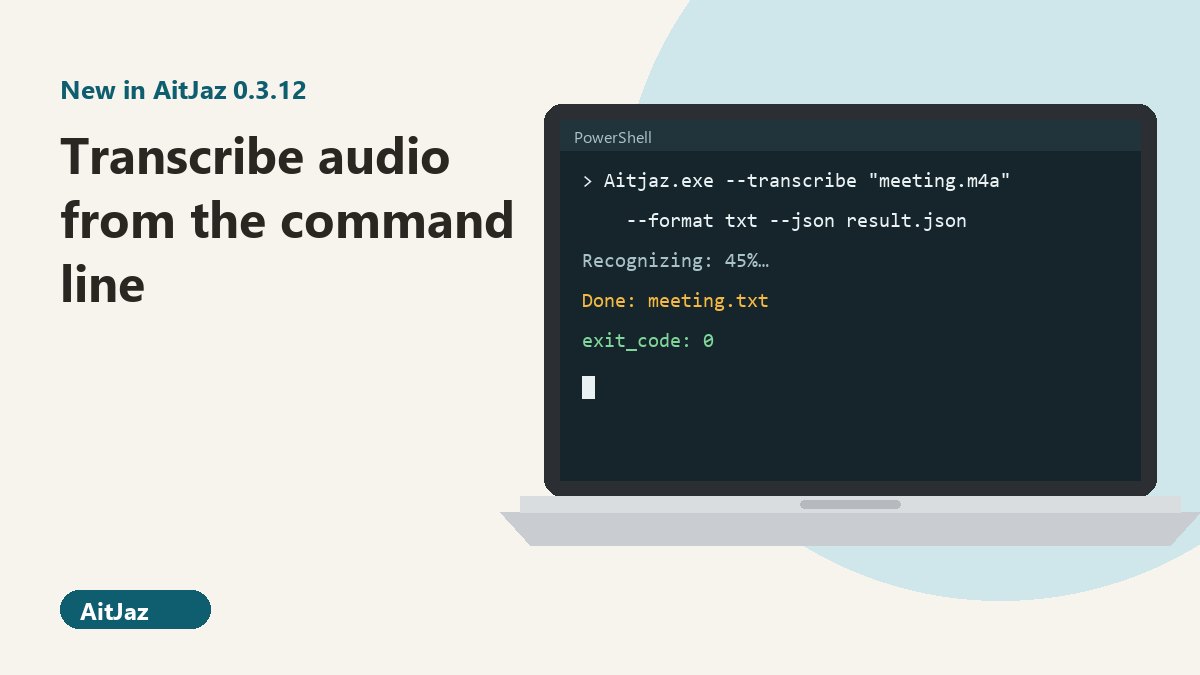
Starting with version 0.3.12, AitJaz can transcribe audio and video from the command line without opening its window: run Aitjaz.exe --transcribe with the path to a recording, and it saves a Word, .txt or .srt file. That lets you call it from scripts, Windows Task Scheduler or an AI assistant such as Claude Code. Check the result through the exit code and the --json file. A valid license or the trial is required.
The settings window is fine for one recording at a time. When you have dozens, or another program needs the text, clicking through it gets old fast, so AitJaz 0.3.12 adds a command for it. That version is out now, both in the Microsoft Store and as the installer on this site. If the command doesn't work for you, check your version: open Settings, go to General and click Check for updates (if AitJaz has already found the update, the button says Update to version 0.3.12).
When the command line makes sense
- A recorder or meeting app drops files into a folder, and you want the transcripts ready in the morning.
- You have a batch of interviews or lectures and don't want to open each one by hand.
- Your own script or bot receives voice messages and needs them as text.
- An AI assistant on your computer, such as Claude Code, should fetch the text of a recording and keep working with it.
It is the same transcription as in the app: the same models, vocabulary and language settings. There's no length limit and no per-minute fee; the command line comes with the same one-time purchase. If you turned on your own cloud key for files, the command uses it too. AitJaz can stay open while the command runs, because transcription happens in a separate process.
Where to find Aitjaz.exe
| Installed from | How to call it |
|---|---|
| aitjaz.com (GitHub release) | Full path:
"%LOCALAPPDATA%\Programs\Aitjaz\Aitjaz.exe", unless you picked another folder during
setup |
| Microsoft Store | Just Aitjaz.exe, from PowerShell, cmd or the Run box |
If the Store version isn't found, go to Settings → Apps → Advanced app settings → App execution aliases and switch AitJaz on. On Windows 10 the path is Settings → Apps → Apps & features → App execution aliases.
A basic command
Aitjaz.exe --transcribe "D:\Recordings\interview.mp3" --format docx --speakers 2 --out "D:\Transcripts"The output takes the recording's name, here “interview.docx”. If that file already exists, AitJaz writes
“interview (2).docx” rather than overwriting it. Without --out, the transcript is saved next to
the recording. Input formats are the same as in the app: mp3, m4a, wav, ogg, WhatsApp and Telegram voice
messages, mp4, mov, mkv and more.
Options
| You want to | Add |
|---|---|
| Choose Word, plain text or subtitles | --format docx, txt or
srt (default: the last format you used in the app) |
| Save somewhere else | --out "folder" |
| Set the speech language | --lang en: ru, kk, uz, ky, uk, en, de, fr, es, it, pt, pl,
tr, zh, ja, ko, ar, hi (default: from settings) |
| Label who is speaking | --speakers to detect the number of people,
--speakers 3 to set it (2 to 6) |
| Drop the [00:12:30] timestamps | --no-timestamps |
| Skip splitting into paragraphs at pauses | --no-paragraphs |
| Keep the audio off the cloud even if it's enabled | --local |
| Get a machine-readable result | --json "result.json" |
| See the built-in help | --help |
How to tell whether it worked
Rely on the exit code and the --json file. AitJaz deletes the old JSON file when it starts and
always writes a new one, even when the arguments are wrong, so a script never picks up yesterday's result by
mistake.
| Exit code | Meaning | What to do |
|---|---|---|
| 0 | Done | Read the transcript from the path in result |
| 1 | Recognition or saving failed | Read the error message in the JSON or console |
| 2 | Bad arguments or file not found | Check the path and quotes |
| 3 | Trial over, activation needed | Activate AitJaz |
| 4 | No speech in the recording | Make sure it's the right file |
| 130 | Interrupted (Ctrl+C) | Run it again |
Alongside exit_code and result, the JSON holds the state and a message, the
recording length in seconds, the format, the language, the number of speakers found and the AitJaz version.
.txt and .srt files are written as UTF-8 with a BOM.
Making PowerShell wait
Aitjaz.exe is a windowed program, so PowerShell starts it and moves straight on. Progress still prints to the
console you started it from. In a script, wait explicitly with Start-Process -Wait:
$exe = "$env:LOCALAPPDATA\Programs\Aitjaz\Aitjaz.exe"    # Store version: just "Aitjaz.exe"
$p = Start-Process -FilePath $exe -Wait -PassThru -NoNewWindow `
     -ArgumentList '--transcribe "D:\Recordings\lecture.m4a" --format txt --json "D:\Transcripts\result.json"'
$p.ExitCode
(Get-Content "D:\Transcripts\result.json" -Encoding UTF8 | ConvertFrom-Json).result
In cmd, start /wait does the waiting and %errorlevel% holds the exit code:
start /wait "" "%LOCALAPPDATA%\Programs\Aitjaz\Aitjaz.exe" --transcribe "D:\Recordings\lecture.m4a" --format srt
echo %errorlevel%
Example: transcribe new recordings every night
This script goes through a folder and transcribes only the recordings that don't have a .txt yet. If AitJaz reports that activation is needed, the script stops instead of failing on every file.
# Nightly job: turn new recordings in a folder into .txt files
$exe  = "$env:LOCALAPPDATA\Programs\Aitjaz\Aitjaz.exe"   # Store version: just "Aitjaz.exe"
$src  = "D:\Recorder"            # where recordings arrive
$dst  = "D:\Transcripts"         # where the text goes
$json = "$env:TEMP\aitjaz-result.json"
New-Item -ItemType Directory -Force -Path $dst | Out-Null

$files = Get-ChildItem -LiteralPath $src -File |
         Where-Object { $_.Extension -in '.m4a', '.mp3', '.wav', '.ogg', '.mp4' }

foreach ($f in $files) {
    if (Test-Path -LiteralPath (Join-Path $dst ($f.BaseName + '.txt'))) { continue }   # already done

    $argLine = "--transcribe `"$($f.FullName)`" --format txt --out `"$dst`" --json `"$json`""
    $p = Start-Process -FilePath $exe -ArgumentList $argLine -Wait -PassThru -NoNewWindow

    if     ($p.ExitCode -eq 0) { "Done: $($f.Name)" }
    elseif ($p.ExitCode -eq 4) { "No speech: $($f.Name)" }
    elseif ($p.ExitCode -eq 3) { "AitJaz needs activation, stopping"; break }
    else   { "Error $($p.ExitCode) on $($f.Name), see $json" }
}
To run it automatically, open Task Scheduler and choose Create Basic Task…. Set the trigger to
Daily at, say, 2:00 AM, and the action to Start a program with powershell.exe as
the program and
-NoProfile -ExecutionPolicy Bypass -File "D:\Scripts\nightly-transcribe.ps1" as the arguments.
Run the task under your own user account, the one where AitJaz is installed and activated. By default a basic
task runs only while you are signed in to Windows (a locked screen is fine) and won't wake a sleeping PC; tick
Wake the computer to run this task in the task's properties if you need that.
Recordings that end with an error or contain no speech never get a .txt, so the script will retry them every night. Move such files out of the folder.
💡 If your folder names contain non-Latin letters, save the script as UTF-8 with BOM. Windows PowerShell 5.1 reads files without a BOM in the legacy code page, which garbles such paths.
Letting an AI assistant transcribe for you
An assistant that can run commands on your computer will manage on its own once it knows the steps. Add something like this to its instructions (for Claude Code, the CLAUDE.md file):
AitJaz is installed on this computer for turning audio and video into text.
1. Run in PowerShell (fill in the recording path and a folder):
   $p = Start-Process "$env:LOCALAPPDATA\Programs\Aitjaz\Aitjaz.exe" -Wait -PassThru -NoNewWindow `
        -ArgumentList '--transcribe "<recording path>" --format txt --json "<folder>\aitjaz.json"'
   (If AitJaz came from the Microsoft Store, use just Aitjaz.exe instead of the full path.)
2. Read <folder>\aitjaz.json as UTF-8. exit_code 0: the transcript is in the file named in "result".
3. exit_code 3: ask the user to activate AitJaz. 4: no speech in the recording. 2: check the path.
4. For several speakers, add --speakers.
5. Transcription runs on the user's PC; a long recording can take many minutes, so don't cut it short.
The assistant gets a plain text file and can do whatever you ask next: find a passage, pull out action items, draft a follow-up email.
Does the recording leave your computer?
Not unless you enabled your own cloud key for files. With the cloud off (or off for files), the recording is
recognized locally and sent nowhere. With it on, the audio goes to the service you chose, using your key, the
same as in the app window. Add --local to force local recognition either way.
For transcribing a single file with the mouse, see Audio and video to text. To capture a video or webinar playing on your PC, read how to transcribe a YouTube video to text, and for inserting saved snippets by voice, see quick commands.
FAQ
Does the command line need a license?
It needs a valid license or an active trial. Once the trial ends, the command exits with code 3.
Can I run the command while AitJaz is open?
Yes. Command-line transcription runs as a separate process, so there's no need to close the app.
Why does PowerShell return immediately?
Aitjaz.exe is a windowed program, and PowerShell doesn't wait for those. Use Start-Process with -Wait and -PassThru so the script waits and gets the exit code.
How do I transcribe a recording in another language?
Add --lang with the language code, for example --lang de. For languages other than Russian, the model downloads once on first use.
Can I get subtitles for a video?
Yes, use --format srt. AitJaz takes only the audio track from a video file.
Does this work with the Microsoft Store version?
Yes, from version 0.3.12. Call it as Aitjaz.exe; if Windows can't find it, turn AitJaz on under App execution aliases in Windows Settings.
How much does AitJaz cost?
The first 7 days are free with every feature, including the command line. After that it's a one-time purchase with a license for 2 computers. See pricing.
One familiar tool instead of many
Every app does things its own way: a different button here, different settings there, and every time you have to remember how to turn it on and how to use it. AitJaz works one way everywhere: hold Right Ctrl, speak, let go, and the text appears where your cursor is. It's the same in messengers, email, documents, your browser and AI chats, so you only learn it once.